Log inTry for free

1 month free

For schools

One platform for the whole language school

Lessons, teachers, students, the timetable and the materials — in one window. Teachers run their classes here, and the school sees its own schedule and its own student base.

  • As many teachers as you needNo quotas, no licences: you pay for the school, not per person.
  • Students never payA free account by email, opened in a browser, nothing to install.
  • First month freeNo card required — enough time to move your materials and teach real lessons.
  • We handle the moveMaterials and student progress from Edvibe and Progressme come across with us.

Start freeWrite to us

Sign up as a teacher — we switch the school workspace on for you; just write to us once you have an account.

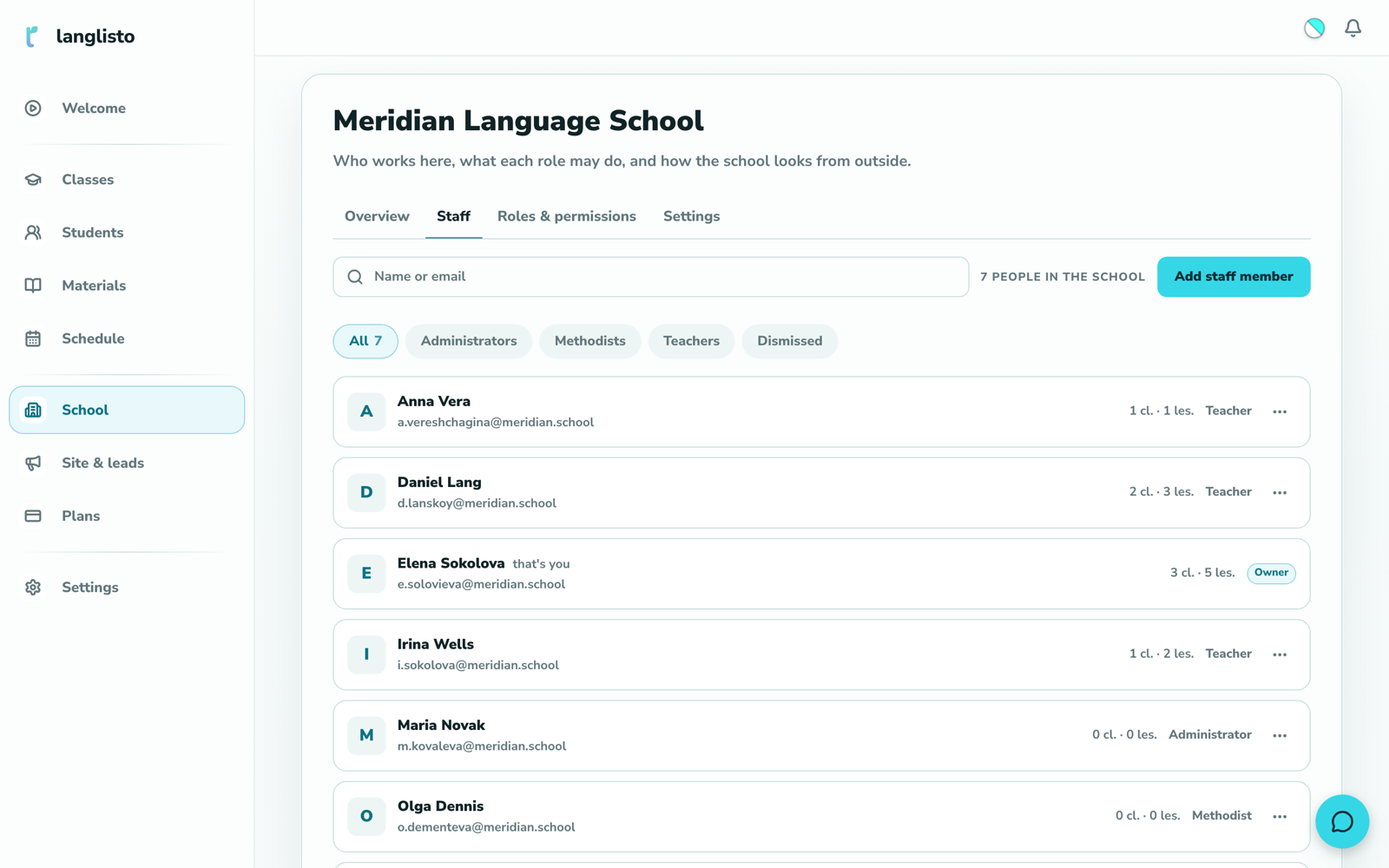
The School section: the staff list with roles — administrator, methodist, teachers

Today

What hurts in a language school

The teacher runs the lesson, so a school isn't buying the lesson — it's buying control: a timetable everyone can see, a base that stays put, and materials that don't walk out with the person.

  • Materials leave with the teacher

    Courses and worksheets sit on personal drives. Someone leaves, and the school no longer has the thing its group was learning from.

    A shared school shelf: the author puts a material there, colleagues take it into their own classes.

  • The timetable lives in a spreadsheet

    Who teaches what, when, how many hours each — all by hand, and the sheet almost never matches reality.

    The whole school's lessons in one window, with a column for every teacher.

  • Only the owner has access

    The administrator can't see the schedule, the methodist can't open the materials, and everything rests on one person with the passwords.

    Four roles and fourteen permissions: the school tunes the matrix to its own order.

  • A teacher resigns — the students go missing

    Groups hang off a personal account, so access and lesson history leave with the person.

    Classes pass to a successor along with students, schedule and history.

  • Everyone is on a different platform

    One teaches in a messenger, another on their own platform, a third in documents. The student hunts for the right link every time.

    One entry point for the student and one place where the school sees lessons and homework.

  • Headcount runs into the invoice

    Where seats are sold, every new teacher is another line on the bill, and hiring gets planned around the plan.

    The price doesn't track headcount: the fifth teacher and the fiftieth are added the same way.

The team

Teachers and staff — with no per-seat fee

There are two ways to add a person, and neither of them counts seats.

  • Invitation by email

    Enter an address and a role — the person gets a letter. The account is created when the invitation is accepted, not when it is sent: a typo in the address leaves no half-made account on somebody else's inbox.

  • An account by hand, with a one-time password

    If there's no work email, or handing access over in person is simpler, create the account yourself: name, email login, role. The password is shown once and no letter goes out.

  • As many teachers as you need

    There is no seat limit — no quota, no counter, no "x seats left" line. The School plan covers the whole school, and it doesn't grow because you hired two more people for the summer.

  • Roles change on the fly

    A role is switched right in the staff list — no recreated account, no lost classes. New permissions apply at once; nobody has to sign out and back in.

  • A departure doesn't drop the classes

    You can't quietly dismiss someone who holds classes: the system names how many there are and asks who continues them. Classes move across with the schedule, the students and the history.

  • Personal work stays personal

    Personal classes and a teacher's own shelf leave with them — the school never saw those and doesn't claim them on the way out. The same on the way in: a teacher arriving with their own students doesn't hand them over.

Permissions

Roles and permissions: who sees what

Permissions belong to a role, not to a person. Set the role up once and it applies to everyone wearing it — three teachers or thirty.

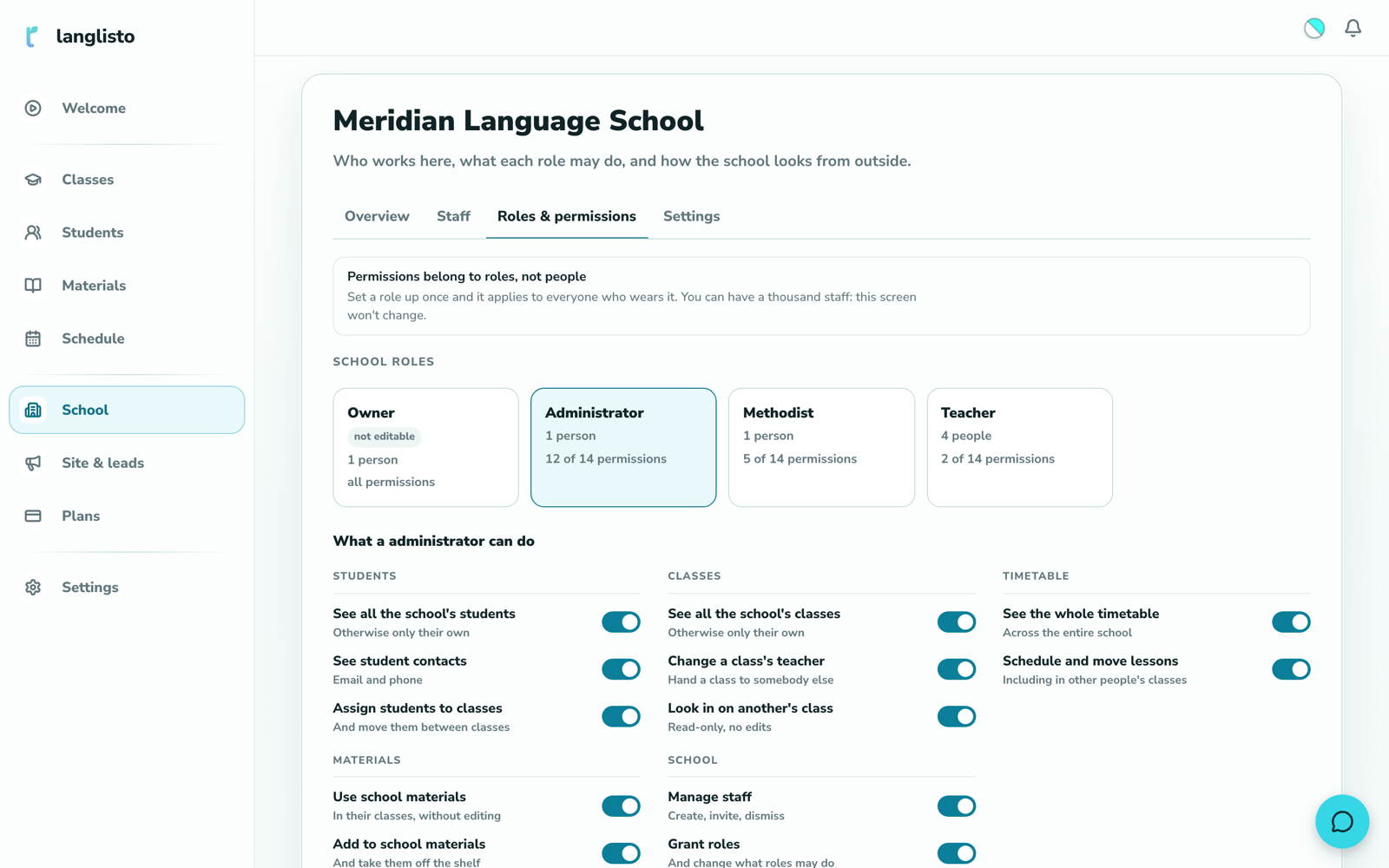
The roles screen: four role cards and a matrix of fourteen permissions with switches
Roles and permissions: the administrator holds 12 of 14, the methodist 5, the teacher 2 — and that's the default layout, not a ceiling.
  • Four roles

    Owner, administrator, methodist, teacher. The owner always holds every permission, their row can't be edited and they can't be dismissed — otherwise a school would one day be locked out of its own settings.

  • Fourteen permissions in five groups

    Students, classes, schedule, materials, school. The screen is a matrix: the permission on the left, the role on top, a switch where they meet. "See the whole schedule", "Reassign a class", "Publish to the school shelf", "Grant roles" — each one is its own switch.

  • The school edits the matrix

    The starting layout is only a starting point: the teacher works in their own classes, the methodist reviews and builds the programme, the administrator runs the schedule and the staff. From there the school moves the switches to suit itself.

  • A teacher sees only their own classes

    By default they hold two permissions: scheduling their lessons and taking materials from the shared shelf. The school-wide student list and other people's classes stay out of sight.

  • "Observe another class" is its own permission

    It grants read-only access. A methodist or an administrator opens a colleague's lesson to see how the programme is going, without nudging anything in it.

  • Revoking closes the door immediately

    Permissions are read on every request: flip the switch off and access is gone — no waiting for the person to sign in again. That matters on exactly one day: the day somebody leaves.

Library

The school's shared material library

The school's teaching base stops living on one teacher's personal drive: the author puts a material on the shared shelf and colleagues take it into their classes.

  • The school shelf sits beside the personal one

    Personal folders stay closed: joining a school doesn't open your workspace to colleagues. Only what the author puts there shows up on the shared shelf.

  • The author publishes, and only their own

    You can't put someone else's material on the shelf. Every card is signed — it's clear who published it.

  • One original for the whole school

    A colleague takes the material by reference, not as a copy: fix a typo and the fix reaches every class that took it. The flip side of the same rule — only the author can edit it.

  • Unpublishing doesn't break lessons

    Take a material off the shelf and the classes already using it keep working. The shelf entry disappears, not the lesson in the class.

  • Taking and publishing are separate permissions

    "Take school materials" and "Publish to the school shelf" are two different switches. A methodist might do both, while a teacher only takes.

Timetable

The school timetable and teacher workload

Every lesson in the school in one window, with a column per teacher. You can see who is overloaded, where the gaps are and who is busy with what.

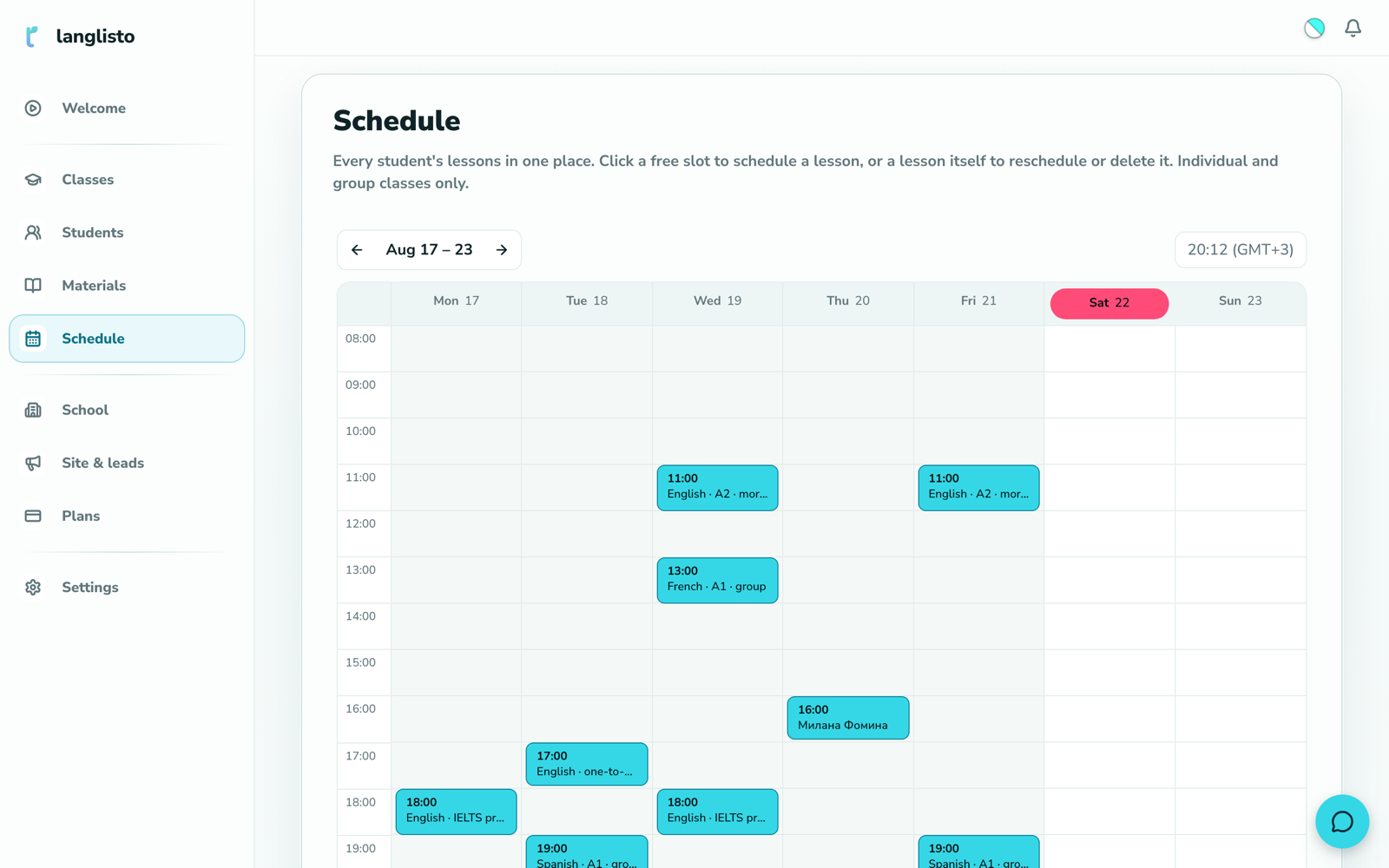
The school week: lessons laid out by day and hour
A school week: every teacher's lessons in one grid, with "Today" bringing you back to the current week.
  • A whole school week

    One window instead of opening classes one by one. Weeks page back and forth, and a filter shows either every teacher at once or a single one.

  • A "Mine / Whole school" switch

    One screen answers two questions. The school-wide view opens for whoever holds "See the whole schedule" — the switch itself grants nothing.

  • Workload per teacher over 30 days

    How many lessons each one actually taught in the past month. Taught lessons count, not scheduled ones: that answers who is really carrying the load — and shows who could take on more.

  • Personal classes stay out of the school view

    A teacher's private practice never appears in the school timetable, neither as a row nor as a number in the workload. The two contours are separate, and that works both ways.

  • Viewing and scheduling are separate permissions

    "See the whole schedule" and "Schedule and move lessons" are switched on independently, and the second one also covers other people's classes.

  • What isn't here

    This is a timetable and a workload, not analytics: no attendance percentages, no funnels, no forecasts. We don't draw numbers the system doesn't have.

Two contours

School classes and a teacher's personal classes

A school owns the records about itself, not the contents of somebody else's lesson. The teacher arrives with their own work and leaves with it — and the school keeps its schedule and its students.

  • What sits in the school contour

    School classes, the timetable, the shared library, staff and permissions. These are the school's records about itself: who teaches, when and which students. They stay with the school whoever is on the payroll today.

  • What stays personal

    The teacher's personal classes, their own materials and their private students. One workspace, but the two lists of classes never mix.

  • Joining and leaving take nothing away

    A teacher joins — their materials don't become the school's. They leave — school classes stay with the school and personal ones go with them. Neither side carries off what isn't theirs.

  • Why this matters

    School mode often goes unused precisely because of the ownership argument: the teacher won't hand over their work, the school won't depend on one person. Two contours remove the argument entirely.

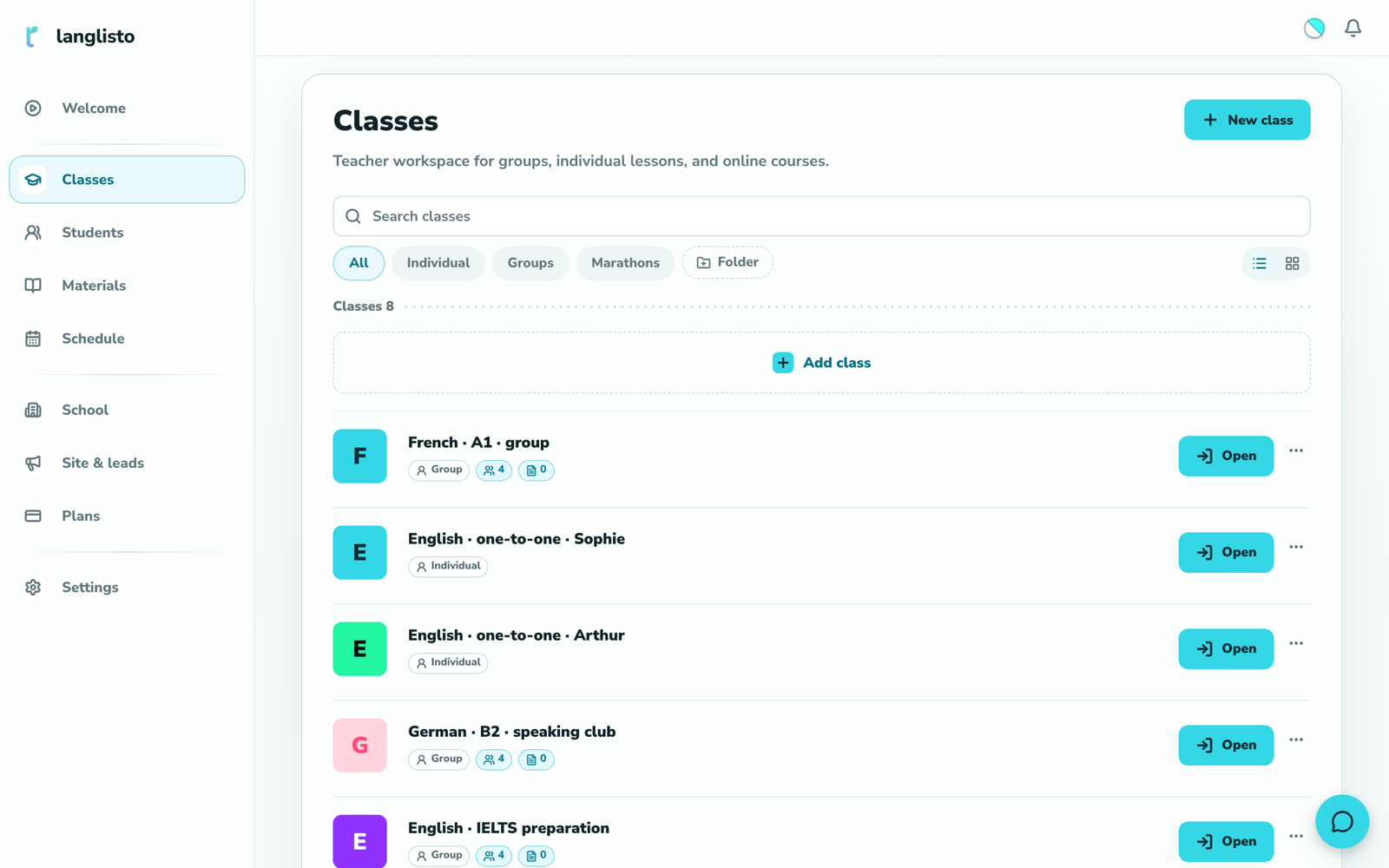
School classes: groups and one-to-one lessons with student counts
School classes sit next to the teacher's personal ones — one workspace, two contours.

Moving in

Moving from Edvibe or Progressme is on us

A school doesn't pick a platform on subscription price alone: the price is easy to see, the evenings spent re-uploading years of work are not. We do that part.

  • What comes across

    Materials with their structure — courses, lessons, sections, exercises — and student progress. Not a folder of files, but the shape they were built in.

  • Teachers don't rebuild the base

    No "please re-upload your materials by Monday" and no chasing whoever missed it: a teacher signs in and their courses are already there.

  • Students carry on where they stopped

    Progress travels with the materials, so nobody has to explain to parents why finished work reset to zero.

  • How it goes

    Tell us where you're moving from. We look at the volume and name a timeline, the move runs on our side, and you check the result in your own workspace. While you're checking, there's nothing to pay.

Step-by-step guides to moving are on our blog

The workspace

A platform for online lessons — for every teacher in the school

The school contour is about the school. But the lesson belongs to the teacher, and each one gets the full set: no cut-down "staff edition", no per-seat fee.

  • Lesson builder

    Gap-fills, matching, word order, image labels, listening, dialogue, essay, cards. Students answer in the browser and checkable types mark themselves.

  • AI builds the material

    Give it a topic, a level and a number of lessons — it shows a plan, and after your go-ahead it builds the lessons and exercises. You edit them afterwards like any other material.

  • Live lessons

    Board and video call in one window: you can see who has answered, who is still thinking and who hasn't started. A browser is all the student needs.

  • Shared video

    Play, pause and seek land for everyone at once — stop on a line and rewind without dictating a timecode to the group.

  • Homework

    Homework lives in the workspace, not in a chat thread: you see who submitted and how it went. Auto-checked work arrives already marked.

  • Vocabulary and word practice

    A word from the lesson goes into the student's dictionary with a translation and audio, then comes back through spaced repetition.

  • Pronunciation

    The student records their voice, the platform listens and shows what came through and what didn't.

  • Groups, one-to-one, marathons

    The same workspace throughout — only the number of students on a programme changes, from a small speaking group to exam intensives.

  • Student preview

    One click opens the lesson exactly as the student will see it: no answers, no teacher controls.

  • A page that takes enquiries

    The teacher assembles a page from blocks and enquiries land in the workspace instead of a private inbox.

Branding

A workspace under your school's name

Teachers and students are in this workspace every day — and they see the school's name, not the platform's.

  • Your logo and your name

    They sit in the workspace: in the header, in the class list, on lesson pages. Change them and they change for everyone at once, with nothing for students to reconfigure.

  • One look for the whole school

    Set once, applied to everyone: an invited teacher signs into a workspace that is already branded and configures nothing.

  • Worth knowing up front

    A school doesn't get its own domain — the sign-in address stays ours. The look changes, the address doesn't; if that matters to you, write and we'll tell you what's possible today.

Money

One plan for the school, not for each teacher

First month free, no card required. Small, Medium and Custom are priced by online and marathon student capacity. Teachers are unlimited.

School

Billing term

School plan

School · Small · 1 month

$39

Try for free

First month free. No card required.

AI helps you prepare lessons. A free allowance is included; extra usage is paid separately.

Unlimited teachers with no per-teacher fee. Pricing depends on student capacity in two separate formats.

Everything in Tutor, and on top of it:

  • Unlimited teachers, no per-seat fee
  • Shared library of the school's materials
  • Your logo and your cabinet styling
  • Staff accounts and access rights

Getting started

How a school gets connected

An ordinary sign-up first, then a short conversation with us, then colleagues and materials.

  1. Sign up as a teacherAn ordinary email sign-up, the same one any tutor uses. The first month is free, no card required. This isn't a demo: everything you build stays with you once the school is switched on.
  2. Write to us — we switch the school onThere is no "create a school" button in the app and we don't pretend otherwise: we connect it ourselves. We'll ask three things — the school's name, how many teachers, and where you're moving from.
  3. Invite your teachers and move your materialsAn email invitation or an account with a one-time password, then roles and permissions arranged your way. Materials from another platform come across with us.
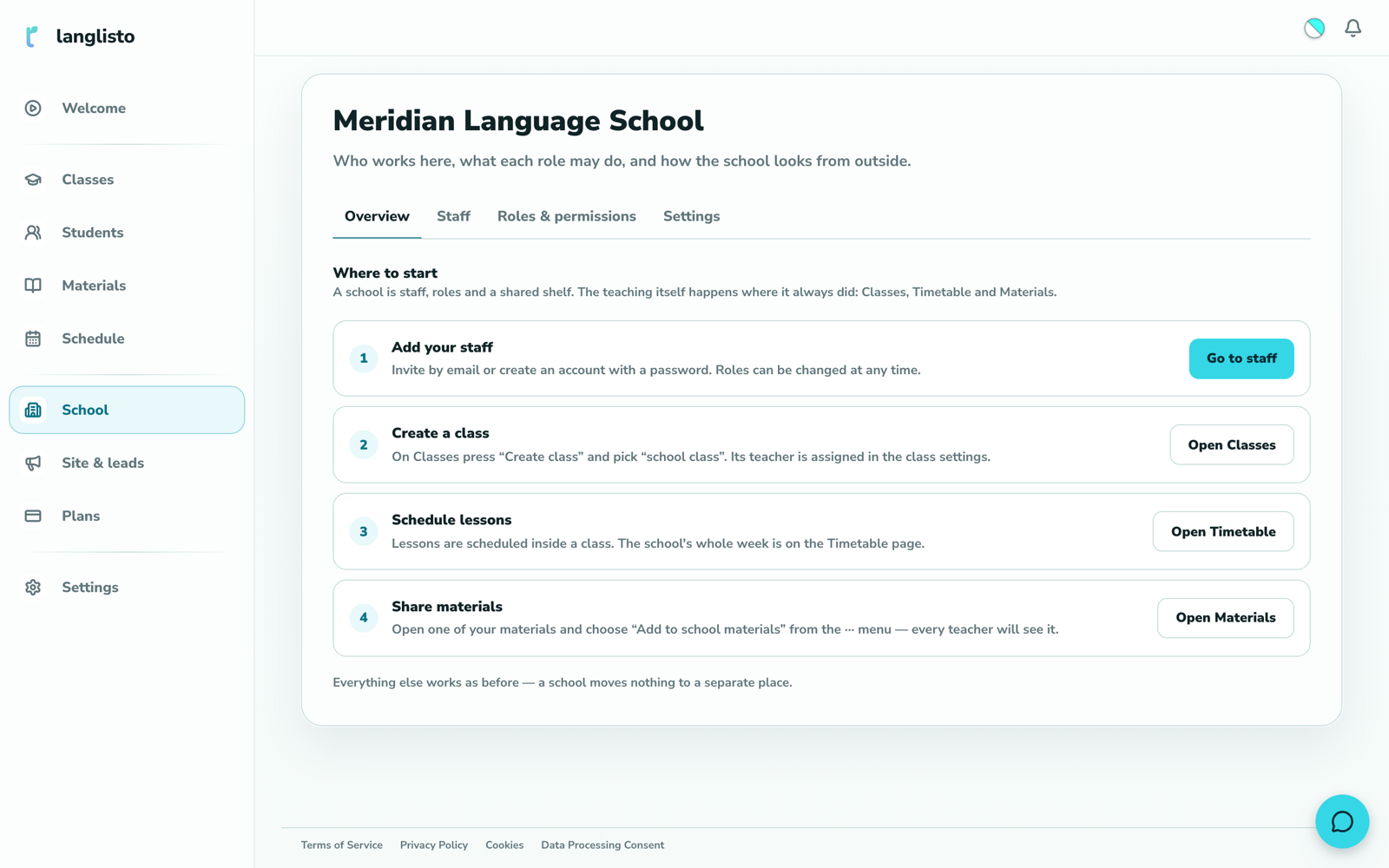
The School section, Overview tab: four steps — staff, a class, lessons, materials
Once it's connected, the School section appears in the workspace on its own.

Questions

What schools usually ask

  • What does it cost for a school, and is there a per-teacher fee?

    New schools choose Small, Medium or Custom. Pricing depends on two student limits: online lessons and marathons. Teachers are unlimited with no per-teacher fee. See current prices and terms in the calculator above. The first month is free with no card required. Existing schools keep their agreed terms; AI usage is accounted for separately.

  • Can we bring materials over from Edvibe or Progressme?

    Yes. Materials come across with their structure, and so does student progress — we do the move, not your teachers. Tell us where you're moving from and how much there is, and we'll name a timeline.

  • Do students have to pay?

    No, never and for nothing. A student creates a free account by email and opens the lesson in a browser. The school pays, and only for its own plan.

  • How is this different from a CRM for a language school?

    Running a school splits in two: the money and the teaching. A CRM handles leads, payments and the funnel — that's the first half. We cover the second: the lesson itself, materials, homework, the school timetable with a column per teacher and workload over 30 days. If you already have a CRM, keep it — the two don't overlap.

  • What happens to a teacher's materials if they leave?

    School classes pass to a successor along with students, schedule and history. The teacher's personal materials stay theirs: a school owns the records about itself, not the contents of somebody else's lesson. Whatever they published to the shared shelf stays with the school.

  • Can we limit a teacher's access to other people's classes?

    Yes — access is handed out by role: owner, administrator, methodist, teacher. Behind the roles sit fourteen permissions in five groups, and the school edits that matrix itself. By default a teacher sees only their own classes.

  • Does it suit an offline school, or a mix of both?

    Yes. Nothing here requires the lesson to be online: timetable, materials, homework and progress work the same for a class in a room and a class in a video call.

  • How long does connecting take?

    Signing up takes minutes. We switch the school contour on after you write to us — usually the same day. The longest part is moving materials, and we name that timeline once we've seen the volume.

  • Does anything need installing?

    No. Everything runs in the browser on a computer, a laptop or a tablet — including the live lesson with the board and the video call. A student only needs a free account.

  • Are there group lessons and marathons?

    Yes. One-to-one lessons, groups and marathons are the same workspace — only the number of students on a programme changes. No format costs extra.

Your move

See the school from the inside

Sign up as a teacher — a month of full access, no card required. Write to us and we'll switch the school contour on for your account.

Start freeWrite to us

moving from another platform is on us